

Your Google Ads conversion tracking is broken, and every hour it stays broken, your Smart Bidding has no data, your ROAS numbers are fiction, and your ad spend is flying blind. The fix almost always comes down to one of four failure points: a tag that isn’t actually firing, a missing Conversion Linker tag in GTM, a broken GA4-to-Google Ads import chain, or a simple attribution delay you’re mistaking for an error.
This is the exact diagnostic sequence — start to finish — to find which one is killing your conversions and fix it in a single sitting.
The Two Places Your Tracking Breaks (And How to Tell Which One)
Before you touch a single setting, you need to figure out where the chain is snapping. Google Ads conversion tracking has two completely separate paths, and each one breaks differently.
Path 1: The Native Google Ads Conversion Tag (installed via GTM). This fires directly on your website when a user completes the conversion action. If this tag stops firing — or fires on the wrong trigger — Google Ads records nothing.
Path 2: The GA4 Import Method. Your website sends event data to GA4. You mark that event as a Key Event. You link GA4 to Google Ads. You import the Key Event as a conversion inside Google Ads. If ANY link in that four-step chain breaks, Google Ads reports zero.
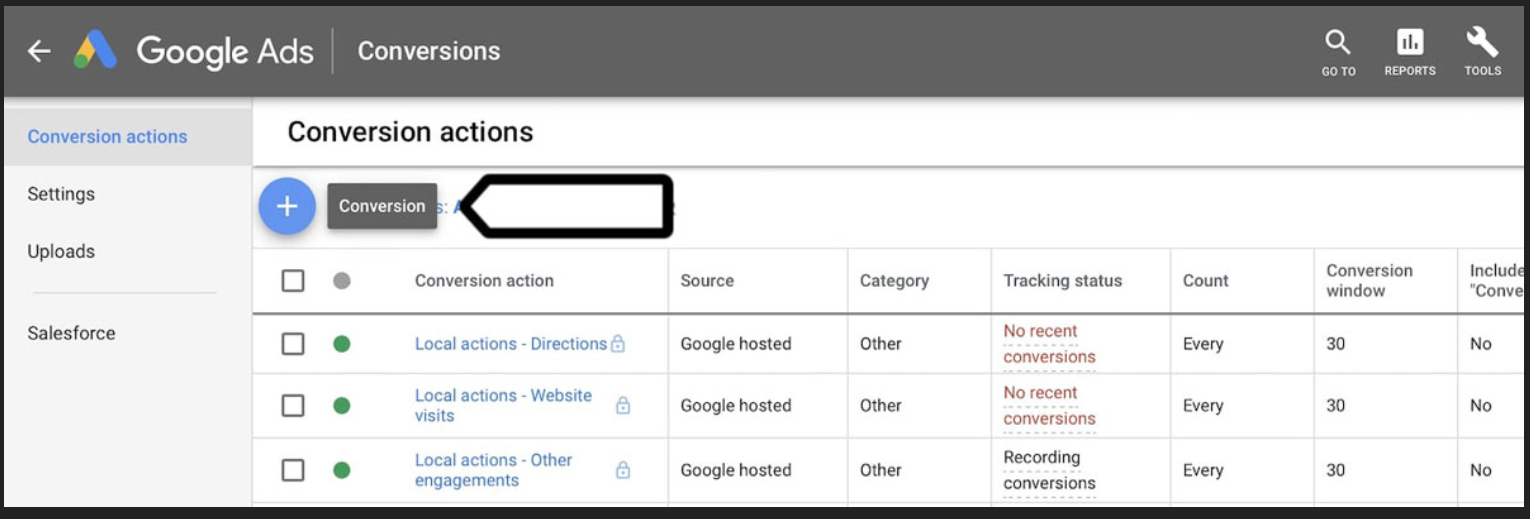
Here’s how to diagnose which path you’re on: Open Google Ads → Tools & Settings → Conversions → click on the specific conversion action → look at Source. It will say either “Website (Google Ads tag)” or “Google Analytics 4.” That tells you which troubleshooting path to follow.
If you’re not sure which method your account uses, start here. Every other fix depends on knowing which chain broke.
Is Your Google Ads Conversion Tag Actually Firing? Here’s the 60-Second Check
Most people assume their tag is firing because they set it up once and it worked before. Tags break silently. A GTM publish, a website redesign, a changed URL path, or a new cookie consent banner can all kill a tag without any warning.
Using Google Tag Assistant to Verify Tag Firing
Open Google Tag Assistant in Chrome. Enter your conversion page URL. Complete the conversion action (submit the form, finish the purchase, reach the thank-you page — whatever triggers it).
Tag Assistant will show you exactly which tags fired on that page. Look for your Google Ads Conversion Tracking tag (it will display the Conversion ID, which starts with “AW-“). If it’s not there, your tag isn’t firing. Period.
What most people miss: Tag Assistant shows tags that loaded on the page. That’s not the same as tags that fired on the correct trigger. A tag can load but never execute because the trigger condition wasn’t met.
Checking GTM Preview Mode for Conversion Tag Triggers
Open GTM → click Preview → enter your site URL → complete the conversion action.
In the Preview debug panel, click on the event that should trigger your conversion tag (usually a form submission, page view of a thank-you page, or a custom event). Under Tags Fired, your Google Ads Conversion Tracking tag should appear. If it’s under Tags Not Fired, click on it — GTM will tell you exactly which trigger condition failed.
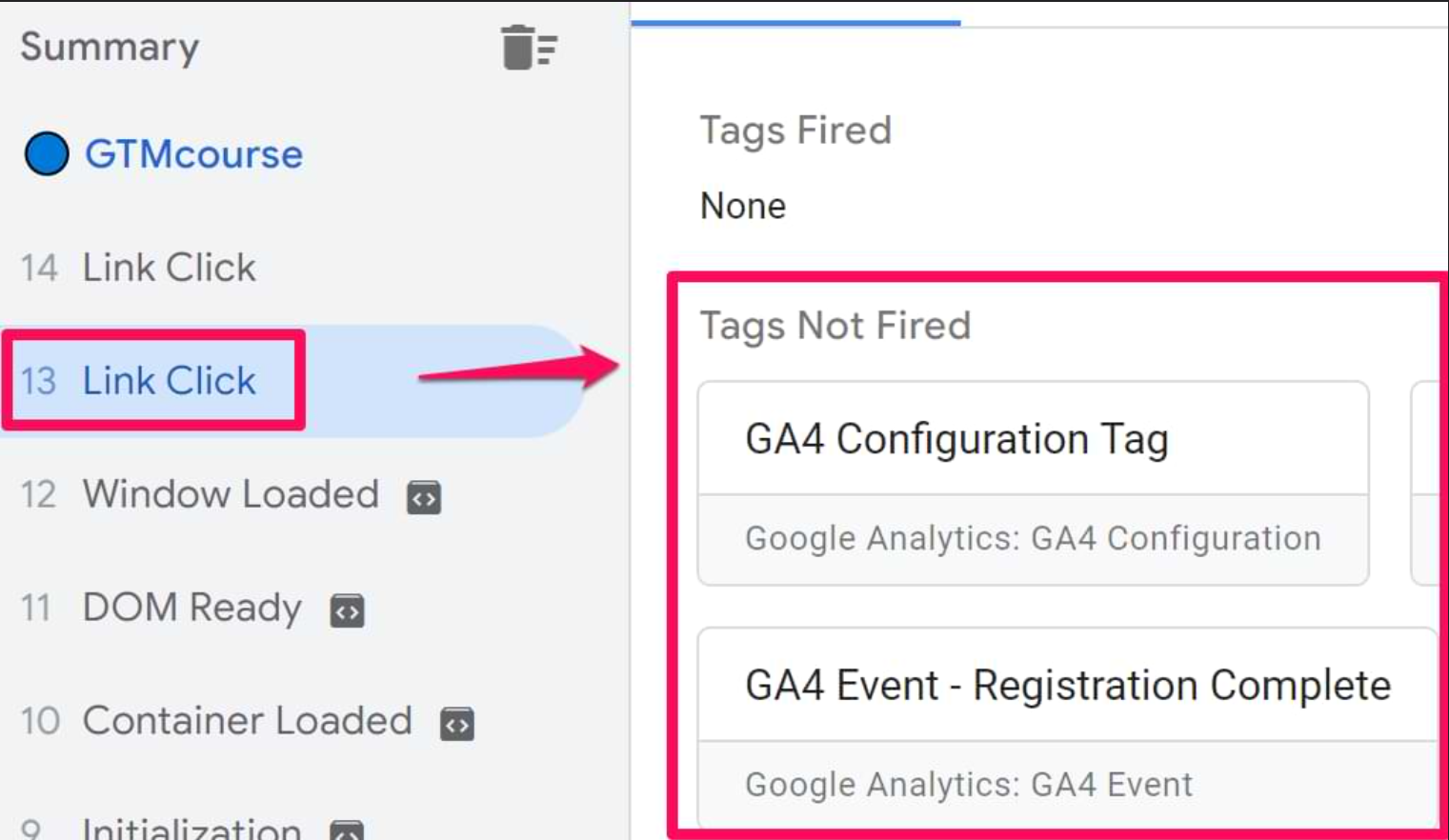
The three most common trigger failures:
- Wrong Page View trigger path. You set the trigger to fire on
/thank-youbut your actual thank-you page loads as/thank-you/(trailing slash) or/ThankYou(case sensitivity). GTM is literal. - Form submission trigger not detecting the submit. GTM’s built-in Form Submission trigger doesn’t work with all forms — especially AJAX forms that don’t reload the page. You may need a custom JavaScript event or a DOM visibility trigger instead.
- Cookie consent blocking GTM from firing the tag. If you’re using a consent management platform (Cookiebot, OneTrust, Termly), your Google Ads tag may be categorized under “Marketing” and blocked until the user explicitly accepts. Check your consent mode configuration.
The Conversion Linker Tag — The Silent Killer Most Guides Skip
Here’s the thing. Your conversion tag can fire perfectly on every conversion event, GTM Preview Mode shows it clean, Tag Assistant confirms it — and Google Ads can still report zero conversions.
The reason is the Conversion Linker tag, and roughly 40% of broken tracking cases I’ve debugged come down to this one missing piece.
The Conversion Linker tag reads the GCLID (Google Click Identifier) from the URL when someone clicks your ad and stores it in a first-party cookie on your domain. Without it, Google Ads can’t connect the conversion tag firing on your site back to the specific ad click that drove it. The conversion fires into a void.
Check this immediately: In GTM, go to Tags and search for “Conversion Linker.” If it doesn’t exist, create one now:
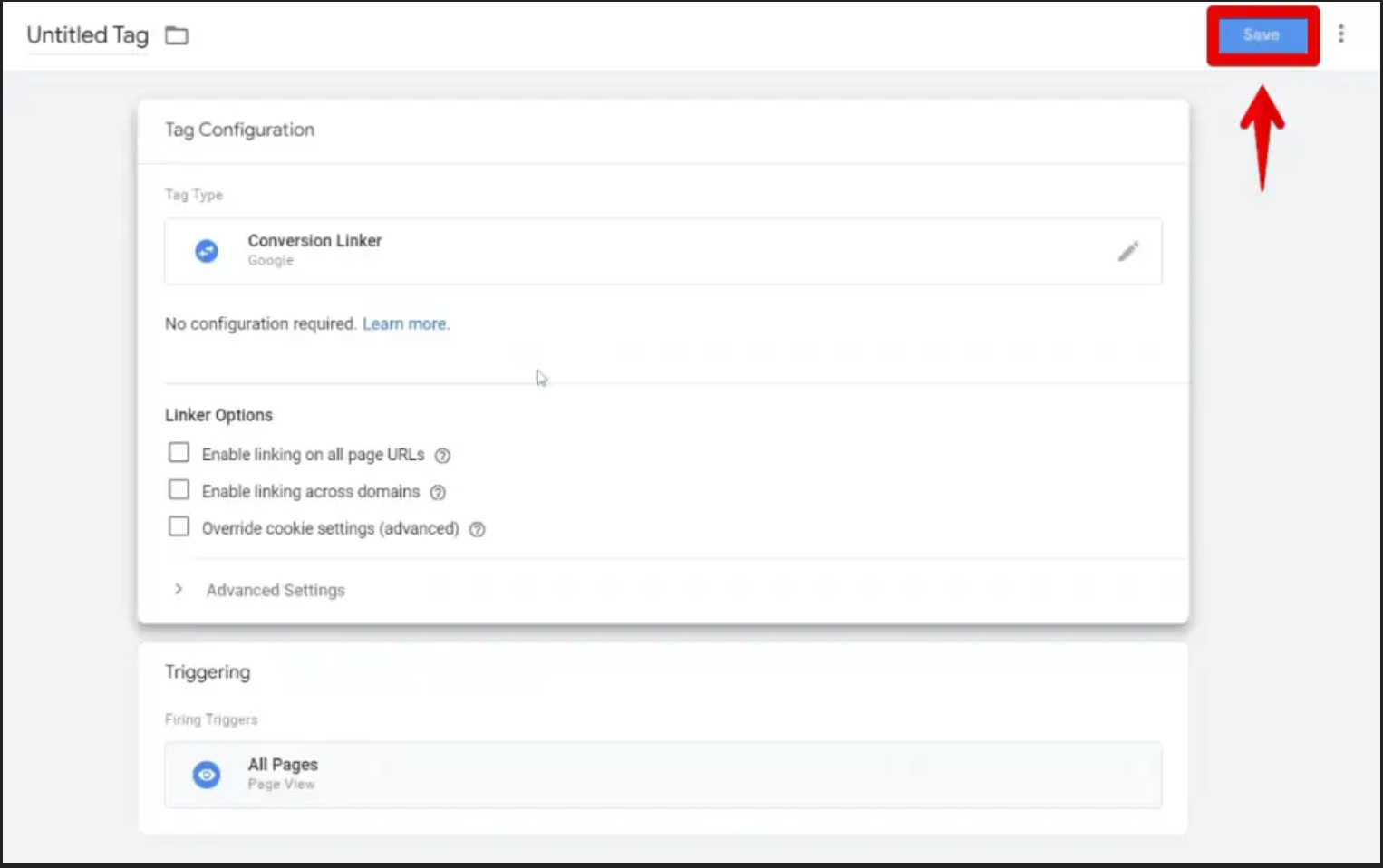
- Click New Tag → Tag Type: Conversion Linker
- Trigger: All Pages (this is critical — it needs to fire on every page, not just the conversion page, because the user lands on your site before they convert)
- Save → Submit → Publish
If the Conversion Linker tag exists but is set to fire only on specific pages, that’s your problem. The user clicks an ad, lands on your homepage or a landing page (where the Linker doesn’t fire), browses to another page, then converts. The GCLID was never captured. Google Ads sees nothing.
Quick rule: Conversion Linker = All Pages. Always. No exceptions.
GA4 Conversions Not Showing in Google Ads? Fix the Import Chain
If your conversion source in Google Ads says “Google Analytics 4,” your tracking depends on a four-link chain. One broken link means zero data. Let’s check each one.
Step 1 — Verify GA4 Marks the Event as a Key Event
Open GA4 → Admin → under your property, click Events. Find the event you’re tracking as a conversion (e.g., generate_lead, purchase, form_submit).
In the right column, you should see a toggle labeled “Mark as key event.” If that toggle is off, GA4 is collecting the event data but not flagging it as a conversion. Google Ads can only import Key Events — regular events are invisible to the import tool.
Important GA4 terminology change (2024): Google renamed “Conversions” to “Key Events” inside GA4. The functionality is identical, but if you’re following a guide written before mid-2024, it may reference “Mark as conversion” instead of “Mark as key event.” Same toggle, new label.
Step 2 — Check Google Ads Linked Account Status
In GA4 → Admin → Product Links → Google Ads Links. Verify your Google Ads account (the 10-digit Customer ID) appears and shows a status of “Linked.”
If it shows “Link expired” or the account isn’t listed at all, re-link it:
- Click Link → select the Google Ads account → enable Personalized Advertising → confirm
- This requires admin access on both the GA4 property AND the Google Ads account
Common mistake: you linked the wrong Google Ads account. If you manage multiple accounts under an MCC (Manager Account), verify the specific account ID matches the one running the campaigns.
Step 3 — Re-Import and Wait (Google’s 24–72 Hour Delay)
In Google Ads → Tools & Settings → Conversions → click + New conversion action → select Import → choose Google Analytics 4 properties → select the linked property → find your Key Event → import it.
If you’ve already imported it but it shows “No recent conversions” or “Inactive,” try removing the conversion action and re-importing it fresh.
The delay nobody warns you about: GA4-imported conversions are NOT real-time. Google’s own documentation states a 24–72 hour processing delay before imported conversion data appears in Google Ads reports. If you just fixed the import chain, do not expect to see data for 1–3 days. Don’t keep changing settings during this window — you’ll reset the clock.
Google’s conversion data freshness documentation
If you’ve gone through all three steps and conversions still aren’t recording after 72 hours, the issue is usually deeper — either a GTM container conflict, a consent mode misconfiguration, or an account-level linking problem that requires diving into the Google Ads API diagnostics.
Worth asking yourself honestly: are you spending more time debugging tracking than actually running campaigns? If this troubleshooting cycle has eaten more than 3–4 hours, the cost of your time has likely exceeded the cost of a one-time professional audit.
How Much Does a Google Ads Conversion Tracking Audit Cost?
Let’s put real numbers on this, because “hire a specialist” means nothing without a price context.
DIY (your time cost): If you bill at $50–$150/hour and spend 3–6 hours troubleshooting, you’ve spent $150–$900 in opportunity cost. That’s before factoring in the wasted ad spend from days of untracked conversions feeding garbage data to Smart Bidding.
Freelance PPC specialist (one-time audit): Most freelance Google Ads consultants charge $150–$400 for a conversion tracking audit and fix. This typically includes GTM container review, GA4 configuration check, conversion action verification, and testing. Expect turnaround within 1–3 business days.
Agency-level audit: Full-service digital marketing agencies often bundle conversion tracking into broader Google Ads audits priced at $500–$2,000+, depending on account complexity (number of conversion actions, multi-domain tracking, offline conversion imports, CRM integrations).
Automated audit tools: Platforms likeOptmyzr and Adalysis offer automated conversion tracking diagnostics as part of their PPC management suites, typically $99–$499/month with the tracking audit as one feature among many.
| Fix Method | Cost Range | Turnaround | Best For |
|---|---|---|---|
| DIY (this guide) | $0 (+ your time) | 1–4 hours | Intermediate PPC managers with GTM access |
| Freelance specialist | $150–$400 | 1–3 days | Business owners who need a reliable one-time fix |
| Agency audit | $500–$2,000+ | 3–10 days | Complex multi-account or multi-domain setups |
| Automated PPC tools | $99–$499/mo | Continuous | Teams managing 5+ accounts with ongoing monitoring needs |
The math that matters: If your Google Ads account spends $5,000/month and tracking has been broken for two weeks, Smart Bidding has been optimizing on incomplete data for 14 days. That’s roughly $2,500 in spend guided by bad signals. A $300 audit pays for itself before lunch.
Native Google Ads Tag vs. GA4 Import — Which Method Breaks Less?
This is the question nobody answers directly because “it depends” feels safer. Let’s stop being vague.
The native Google Ads tag (via GTM) is more reliable for real-time conversion reporting and Smart Bidding.
Here’s why: it has fewer failure points. The chain is: User clicks ad → lands on site → completes action → GTM fires conversion tag → Google Ads records it. Three links.
The GA4 import chain: User clicks ad → lands on site → completes action → GTM fires GA4 event tag → GA4 processes the event → GA4 marks it as Key Event → GA4 sends it to linked Google Ads account → Google Ads imports it. Seven links. More links = more break points.
| Factor | Native Google Ads Tag (GTM) | GA4 Import |
|---|---|---|
| Data freshness | Near real-time (3–6 hours) | 24–72 hour delay |
| Smart Bidding compatibility | Optimal — real-time signal delivery | Functional but delayed signals |
| Setup complexity | Moderate — tag + trigger + Conversion Linker | Higher — event setup + Key Event + linking + import |
| Failure points | 3 | 7 |
| Cross-channel reporting | Google Ads only | Unified GA4 dashboard across all channels |
| Attribution model | Google Ads last-click (default) | GA4 data-driven attribution |
| Debugging difficulty | Easier — GTM Preview + Tag Assistant | Harder — must check GA4 DebugView, linking, import status separately |
The practitioner’s recommendation: Use the native Google Ads tag for your primary conversion actions that feed Smart Bidding. Use GA4 imports as a secondary data source for cross-channel analysis and reporting. If you run both, set the GA4-imported conversion to “Secondary” (not “Primary”) in Google Ads to prevent double-counting.
Your Conversion Status Says “Inactive” or “No Recent Conversions” — Now What?
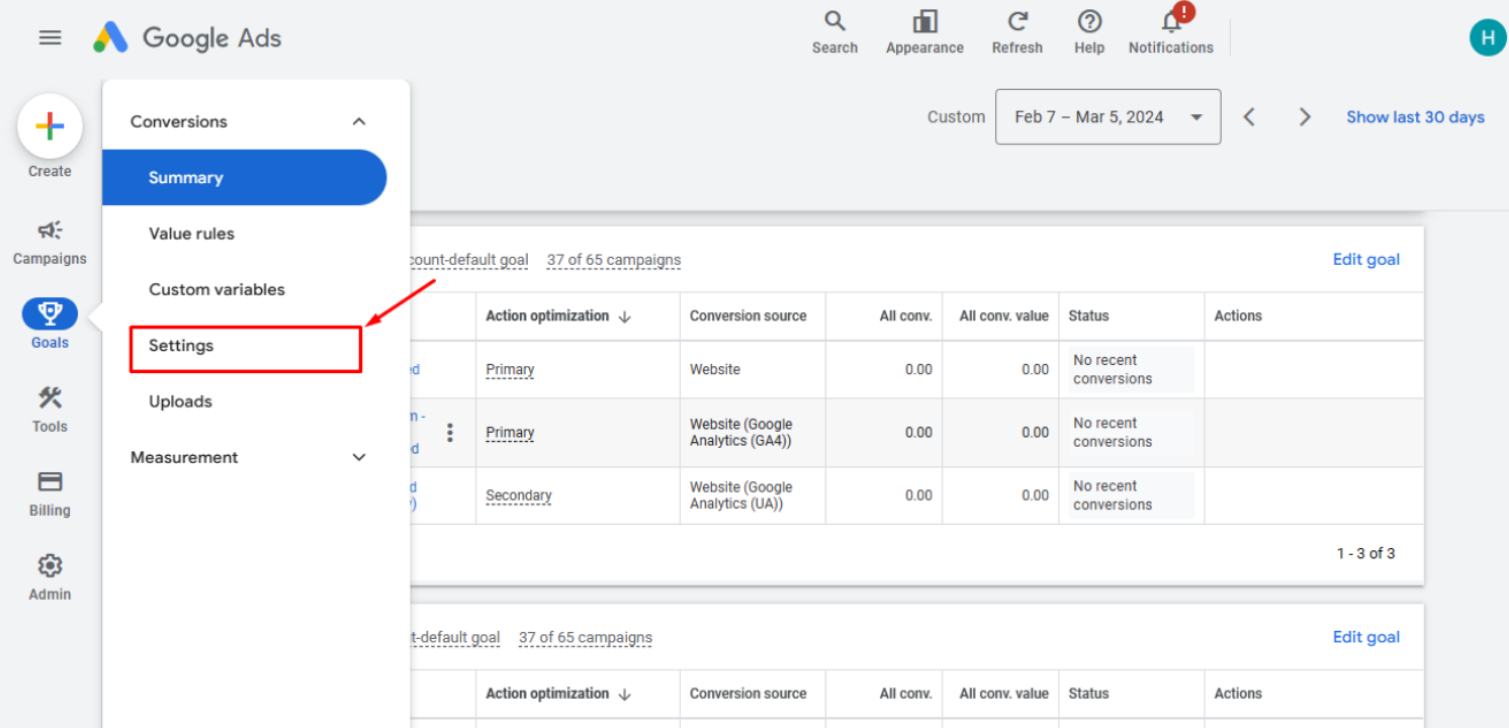
Open Google Ads → Tools & Settings → Conversions. Look at the Status column. Here’s what each status actually means and what to do:
- “Unverified” — Google Ads created the conversion action but has never seen the tag fire. Your tag isn’t installed, isn’t firing, or the Conversion ID/Label in GTM doesn’t match the values in Google Ads. Go back to the tag firing check (Section 2 above).
- “No recent conversions” — The tag fired at some point in the past but hasn’t recorded a conversion within Google’s lookback window (default: 30 days). Either your tag broke recently, your website traffic dropped, or nobody is completing the conversion action. Verify the tag is still firing using GTM Preview Mode, then check that real users are reaching the conversion trigger page in GA4’s real-time reports.
- “Inactive” — Google hasn’t received conversion data from this action in a long time. Functionally similar to “No recent conversions” but older. Same fix as above — but also check whether someone accidentally paused or deleted the conversion action and created a duplicate.
- “Recording conversions” — It’s working. If you’re seeing this status but Google Ads reports still show zero conversions, the issue is your reporting date range or attribution window, not the tracking itself. Extend your date range and check the “All conversions” column (not just “Conversions”).
- “Tag inactive” — Specific to the Google Ads tag (not GA4 imports). The tag exists in your account but Google’s servers haven’t received a ping from it. This usually means GTM published a version that removed or broke the tag. Check your GTM version history for recent changes.
Every status points to a specific section of this troubleshooting guide. Don’t guess — match the status to the fix.
Testing Your Fix Without Wasting Ad Spend
You’ve made changes. Now you need to confirm they work — without burning $50 in test clicks on your live campaigns.
The Real-Time GA4 Debug Method
For GA4-imported conversions, use GA4’s DebugView (Admin → DebugView). Install the [EXTERNAL LINK: “GA4 DebugView Chrome extension” → source: Chrome Web Store] or enable debug mode in GTM (add a custom variable debug_mode = true to your GA4 configuration tag).
Then go to your website and complete the conversion action. In GA4 DebugView, you should see your event appear in real-time, highlighted as a Key Event (marked with a flag icon). If it appears here, the GA4 side is working — the remaining question is whether the import chain to Google Ads is intact.
Google Ads Conversion Diagnostics Tool Walkthrough
Inside Google Ads → Tools & Settings → Conversions → select the conversion action → click Diagnostics (or “Troubleshoot” in some UI versions).
This tool checks:
- Whether the tag was detected on your site in the last 7 days
- Whether the Conversion Linker is present
- Whether there are configuration errors (mismatched Conversion ID/Label)
- Whether consent mode is blocking the tag
Pro move: After fixing your tracking, run a single test ad at $1–$2 budget targeting your own geographic area with a keyword only you would search. Click the ad yourself (yes, one intentional test click won’t violate Google’s policies when you’re testing your own conversion tracking). Complete the conversion action. Check if Google Ads records the conversion within 6 hours (native tag) or 72 hours (GA4 import).
Frequently Asked Questions
Why does GTM show my tag fired but Google Ads shows zero conversions?
The most common cause is a missing Conversion Linker tag in GTM. Without it, Google Ads can’t match the tag firing event to the ad click that brought the user to your site. The second cause: the Conversion ID and Conversion Label in your GTM tag don’t match the values in your Google Ads conversion action settings. Open both, compare the values character by character, and look for copy-paste errors or extra spaces.
Should I use GA4 imported conversions or the Google Ads tag?
Use the native Google Ads tag via GTM for primary conversion actions that feed Smart Bidding — it delivers data in near real-time with fewer failure points. Use GA4 imports as secondary conversion actions for cross-channel reporting. If you run both, set the GA4 import to “Secondary” in Google Ads to avoid double-counting. Many experienced PPC managers run both methods simultaneously for redundancy.
How long does it take for Google Ads to start recording conversions after fixing tracking?
Native Google Ads conversion tags: 3–6 hours after the first valid conversion fires. GA4 imported conversions: 24–72 hours. If your conversion status still shows “Inactive” or “No recent conversions” after 72 hours, the fix didn’t work — return to the diagnostic sequence above and verify each link in the chain again.
Can enhanced conversions fix my tracking issues?
No. Enhanced conversions are an accuracy layer that sits on top of working conversion tracking — they improve match rates by sending hashed first-party data (email, phone) to Google’s servers. If your base tracking (tag firing, Conversion Linker, GA4 import chain) is broken, enhanced conversions won’t do anything. Fix the foundation first, then add enhanced conversions as an upgrade.
Google’s official enhanced conversions documentation
Stop Bleeding Ad Budget — Your Next Move
You now have the exact diagnostic sequence that most PPC consultants walk clients through at $200+/hour. Every step in this guide maps to a specific failure point — no guesswork, no “try everything and hope” approach.
Here’s where most people stall: they fix the tracking, confirm it works in GTM Preview Mode, and then forget to verify that Google Ads actually starts recording conversions within the expected timeframe. Don’t skip the verification step. Set a calendar reminder for 72 hours from now to check your conversion status.
You’ve made it through a troubleshooting sequence that covers 95% of Google Ads conversion tracking failures. That puts you ahead of most people managing ad accounts — including a surprising number of people who do it professionally.
Bookmark this page. The next time your conversion tracking breaks at 11 PM before a product launch, you’ll want this sequence within arm’s reach. Share it with your team, your clients, or that one colleague who keeps saying “I think the tracking might be off.”
And if you’ve been through every step here and the problem still won’t resolve — it’s time to stop troubleshooting and start delegating. A one-time tracking audit from a specialist typically costs less than a single day of wasted ad spend running on broken data.
AUTHOR BIO: Solomon Nnamdi Eke-Osih, Google Ads certified practitioner with 3 years managing PPC campaigns across ecommerce, SaaS, and lead gen verticals. Has personally debugged conversion tracking setups across 200+ GTM containers.
