
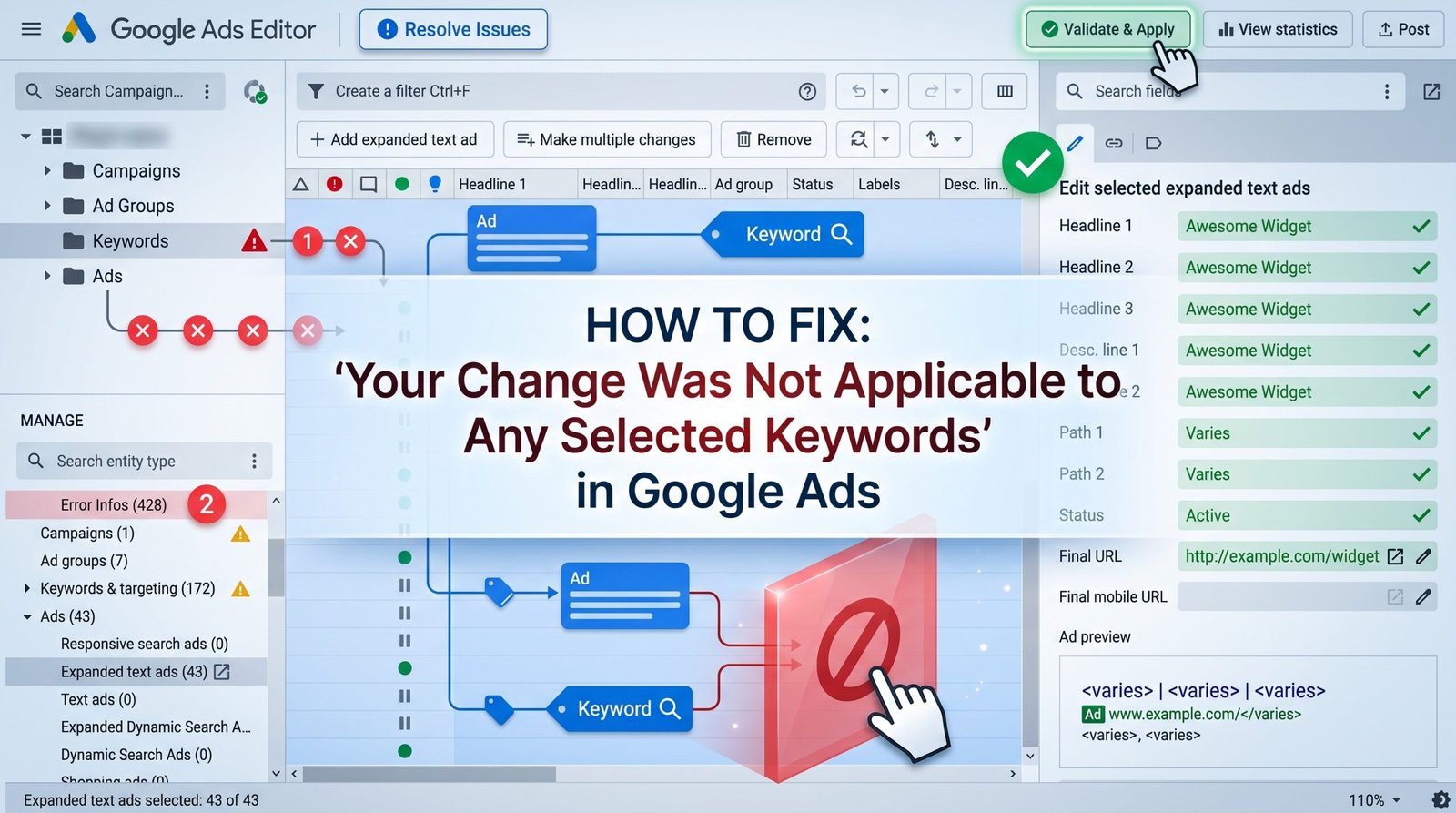
How to Fix “Your Change Was Not Applicable to Any Selected Keywords” in Google Ads
"Change Not Applicable" Google Ads Error: 5 Exact Fixes

You’re staring at the error dialog, your bulk edit just failed, and Google gave you zero explanation. “Your change was not applicable to any selected keywords” fires when Google Ads or Ads Editor cannot map your attempted modification to any active, eligible keyword in your selected scope. The fastest fix: verify your keywords aren’t paused, removed, or disapproved, then force a full sync in Editor before reapplying the change. This google ads editor troubleshooting sequence resolves the error in under two minutes for most accounts.
I’ve hit this exact error dozens of times across client accounts — usually at the worst possible moment, like 30 minutes before a campaign launch. What follows is the diagnostic playbook I use every time.
What This Error Actually Means (and Why Google Won’t Tell You)
The error message is technically accurate but practically useless. “Not applicable” doesn’t tell you why the change failed — only that the system rejected it.
Here’s what’s happening under the hood. When you select keywords and apply a change (bid adjustment, status toggle, URL update, label assignment), Google Ads runs a validation check against each keyword’s current eligibility state. If every single keyword in your selection fails that check, you get this error.
The critical word is “any.” If even one keyword in your selection is eligible, the change applies to that one and the error doesn’t appear. The fact that you’re seeing this message means your entire selection is blocked — which narrows the diagnosis significantly.
The real catch is this: the cause is almost never what you think it is. Most PPC managers immediately assume it’s a permissions issue. In my experience, it’s a stale data problem about 60% of the time.
![google ads editor troubleshooting change not applicable error dialog]() The 5 Root Causes — Run This Diagnostic First
The 5 Root Causes — Run This Diagnostic First
 The 5 Root Causes — Run This Diagnostic First
Before you start clicking through settings, run this quick diagnostic. Each cause maps to a specific fix in the sections below.
Cause 1: Keyword Status Mismatch — Your selected keywords are paused, removed, or pending review. The change you’re trying to apply requires active status.
Cause 2: Match Type or Syntax Conflict — Your bulk upload or edit contains formatting that doesn’t match the existing keyword structure (e.g., trying to apply broad match syntax to exact match keywords).
Cause 3: Editor Sync Failure — Your local Google Ads Editor cache is stale. The keywords you see on screen no longer match what’s on the server.
Cause 4: Policy or Account-Level Restriction — A disapproval, trademark flag, or MCC-level restriction is blocking edits across the entire ad group or campaign.
Cause 5: API or Script Rejection — A third-party tool, automated rule, or Google Ads script is attempting changes that conflict with the current keyword state.
Start with Cause 3. It’s the most common and the fastest to verify. If a sync doesn’t fix it, move to Cause 1.
Fix 1: Keyword Status, Paused Keywords, and Approval Delays
This is the most visible cause and the easiest to confirm.
- In Google Ads, navigate to Keywords → Search Keywords at the ad group level.
- Add the Status column if it’s not already visible (Columns → Modify Columns → Attributes → Status).
- Filter by the status that matches your suspected issue: Removed, Disapproved, or Under Review.
Removed keywords are not editable. Period. If you removed a keyword last week and are now trying to change its bid via a bulk upload, the system has no active entity to apply the change to. You need to re-add the keyword first.
Disapproved keywords are trickier. They appear in your account and look selectable, but most attribute changes (bids, URLs, parameters) will be rejected until the disapproval is resolved. Hover over the status icon to read the specific policy reason.
Under Review keywords behave similarly. Google’s policy review typically completes within 24–48 hours, but I’ve seen it stretch to 5 business days for accounts in regulated verticals like finance and healthcare.
Quick fix: Select only keywords with “Eligible” or “Eligible (Limited)” status, then reapply your change. If the error disappears, you’ve confirmed the cause.
Fix 2: Match Type Conflicts and Syntax Formatting Errors
This cause catches people during bulk uploads — especially when you’re working from a CSV exported by a third-party tool.
| Your Upload Contains | But the Account Has | Result |
|---|---|---|
[running shoes] (exact match brackets) |
running shoes (broad match) |
Change rejected — match type mismatch |
+running +shoes (modified broad) |
running shoes (phrase match) |
Change rejected — deprecated syntax |
"running shoes for men" |
"Running Shoes For Men" (capitalized) |
Usually accepted, but can fail in Editor |
The modified broad match syntax (+keyword) was deprecated in 2021. If your bulk sheet still uses it, Google Ads will reject the entire row. Strip all + modifiers from your upload file and reimport.
For match type mismatches, the fix is straightforward: export the current keyword list directly from Google Ads (not from your third-party tool), make your changes against that fresh export, and re-upload. This ensures your match types align exactly with what’s live in the account.
One thing nobody tells you: if you’re using Google Ads Editor’s “Make Multiple Changes” paste function, it silently drops keywords with syntax conflicts instead of flagging them individually. The “not applicable” error is your only signal that something went wrong.
Fix 3: Google Ads Editor Sync Failures and Stale Local Cache
This is the #1 cause in my experience, and it’s the one Google’s own documentation barely addresses.
Google Ads Editor stores a local copy of your account data. When you make changes in the web interface — or when another team member edits the account — your local Editor copy becomes stale. You’re looking at keywords that may have been paused, removed, or restructured since your last download.
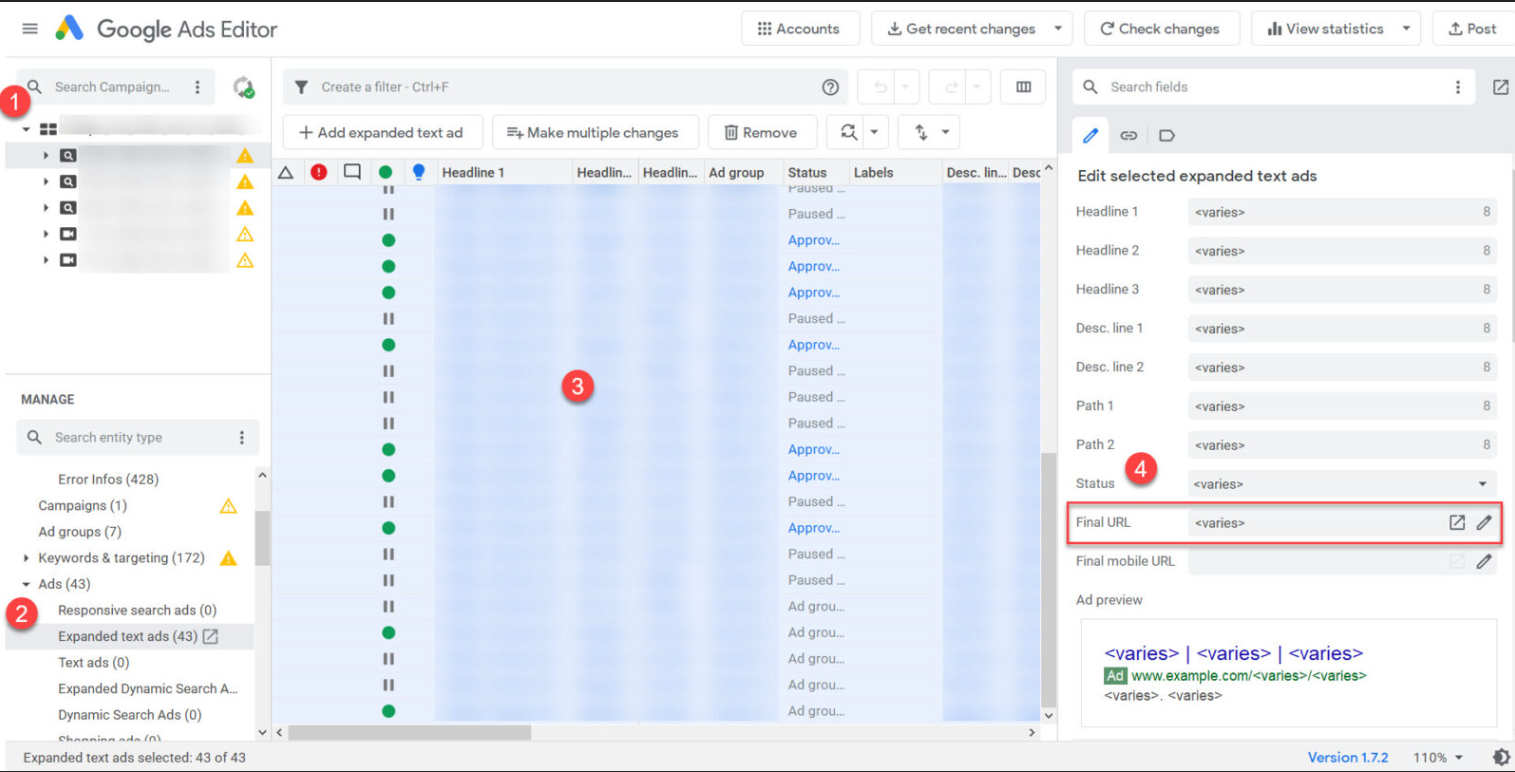
Here’s the exact fix sequence:
- Open Google Ads Editor.
- Click Account in the top menu bar.
- Select Get Recent Changes → All Campaigns (not just “Basic”).
- Wait for the sync to complete. Check the bottom status bar for “Download complete.”
- Re-select your keywords and reapply the change.
If that doesn’t work, escalate to a full cache clear:
- Go to Tools → Settings → Data tab.
- Click Clear Cache (this does NOT delete your pending changes — it only resets the local account snapshot).
- Re-download the entire account via Account → Download All.
The real catch is this: if you’re working in a shared MCC account with multiple editors, someone else may have restructured the ad groups while you were offline. Your keyword selections reference ad group IDs that no longer exist. A full re-download is the only reliable fix in that scenario.
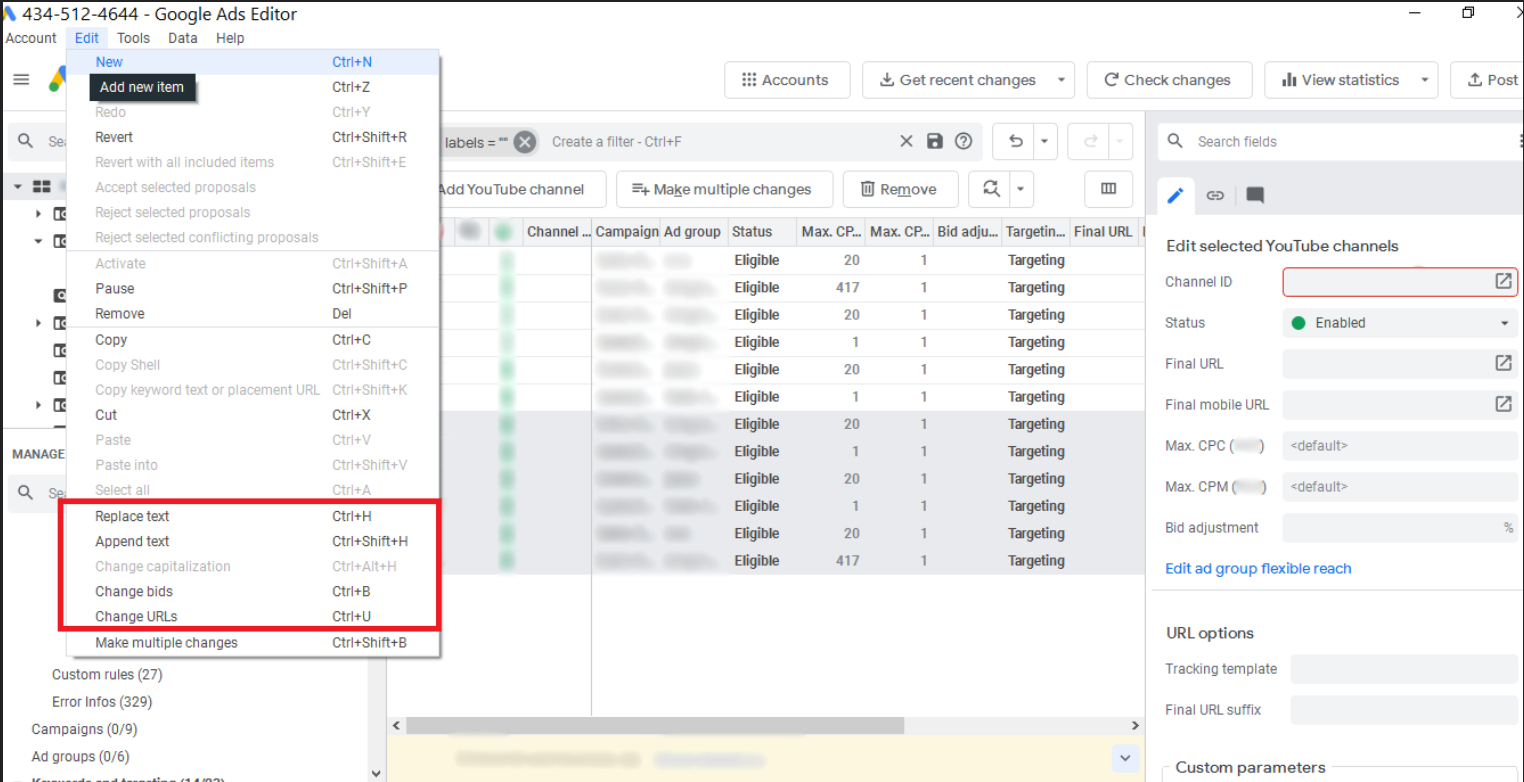
Fix 4: Account-Level Policy Restrictions and Negative Keyword Collisions
This is the cause that burns the most time because it’s invisible at the keyword level.
I ran into this last quarter on a client account in the supplement vertical. We were trying to add UTM parameters to 200 keywords in bulk. Every single change bounced back with “not applicable.” The keywords were active, the match types were correct, and the Editor sync was fresh.
The problem? A campaign-level policy restriction was blocking all URL modifications. Google had flagged the campaign for a healthcare policy review, and during that review window, URL edits were locked at the campaign level — even though the keywords themselves showed “Eligible” status.
How to diagnose this:
- Check Tools → Policy Manager for any active campaign-level disapprovals.
- Look for the yellow warning triangle at the campaign level (not the keyword level).
- Verify that no MCC-level automated rules are restricting edits.
Negative keyword collisions can also trigger this error in a less obvious way. If a negative keyword at the campaign level exactly matches a keyword you’re trying to edit, Google Ads may block the change because the keyword is effectively ineligible to serve. Check Keywords → Negative Keywords at both the campaign and account level.
When to Hire a PPC Audit Service vs. Troubleshooting It Yourself
Let’s be honest: if you’re managing a single account with 500 keywords, the five fixes above will resolve this error in under 10 minutes. But if you’re running multiple accounts, managing thousands of keywords across MCC hierarchies, or dealing with recurring sync failures that resist every fix, the calculus changes.
A professional ppc campaign audit typically costs between $1,500 and $5,000 for a mid-size account (1,000–10,000 keywords). What you’re actually paying for isn’t the error fix itself — it’s the structural cleanup that prevents these errors from recurring. That includes negative keyword deduplication, campaign consolidation, match type rationalization, and Editor workflow standardization.
When it’s worth the investment:
- You’re seeing this error more than twice a week across multiple campaigns.
- Your team has more than three people editing the same accounts simultaneously.
- You’ve recently migrated from one PPC management platform to another and your data structure is fragmented.
When it’s not:
- It’s a one-off sync issue. Run the cache clear, re-download, and move on.
- The error is isolated to a single ad group. Fix the keyword status manually.
If you’re evaluating google ads management services, prioritize agencies that include Editor workflow optimization in their onboarding — not just campaign strategy. The operational layer is where most of these errors originate.
Fix “Eligible (Limited)” in Google Ads: 5 Real Solutions
If you’re running 500+ keywords and this error keeps blocking your bulk edits right now, ask yourself one question: is this a one-time sync glitch, or a structural problem that’s costing your team hours every week?
If it’s structural, a full PPC campaign structure audit will identify the root cause faster than another round of cache clears.
Fix 5: API, Scripts, and Third-Party Tool Rejections
If you’re using automated rules, Google Ads scripts, or third-party platforms like Optmyzr, Skai, or WordStream to manage keyword changes, the “not applicable” error can surface in your tool’s error log rather than in the Google Ads interface itself.
The mechanism is the same — the API call is attempting to modify a keyword that the Google Ads API considers ineligible — but the troubleshooting path is different.
Step 1: Check the API response code. A NOT_APPLICABLE error in the Google Ads API (v15+) typically maps to KeywordError.KEYWORD_NOT_FOUND or KeywordError.KEYWORD_IS_INACTIVE. Your tool’s error log should expose the specific enum.
Step 2: Verify that your third-party tool is authenticated with the correct MCC and client account. I’ve seen this error fire across an entire bulk operation because the OAuth token was pointing to a test account that had no active keywords.
Step 3: If you’re using a custom Google Ads script, add a status filter before the mutation loop:
if (keyword.isEnabled() && keyword.getApprovalStatus() === 'APPROVED')
This prevents the script from attempting changes on ineligible keywords and eliminates the error at the source.
Step 4: For third-party tools, force a data refresh within the tool itself — not just in Google Ads Editor. Most platforms cache their own local copy of your account structure, and that cache can drift independently of your Editor sync.
The Prevention Playbook: 7 Rules to Never See This Error Again
Fixing the error is reactive. Here’s how to stop it from happening in the first place.
Rule 1: Sync before every bulk operation. Make “Get Recent Changes → All” a muscle-memory habit before you touch any bulk edit. Two extra clicks save you 20 minutes of troubleshooting.
Rule 2: Export fresh data for every upload. Never reuse a CSV from last week. The account has changed since then. Export, edit, upload — in that order, every time.
Rule 3: Filter by “Eligible” status before selecting keywords. In both the web UI and Editor, apply a status filter before you select keywords for bulk changes. This eliminates Cause 1 entirely.
Rule 4: Assign one editor per account per session. Concurrent edits from multiple team members are the #1 cause of sync drift. Use a shared spreadsheet or project management tool to coordinate who’s editing what.
Rule 5: Audit negative keyword lists monthly. Campaign-level negative keywords that collide with active keywords create silent eligibility blocks. Run a negative keyword list cleanup at least once a month.
Rule 6: Version-control your bulk upload templates. If your team uses shared CSV templates, date-stamp them and archive old versions. Deprecated match type syntax in a legacy template will silently break your uploads.
Rule 7: Monitor Policy Manager weekly. Campaign-level policy restrictions can lock keyword edits without any visible signal at the keyword level. A five-minute weekly check prevents hours of confusion.
Frequently Asked Questions
Why can’t I edit keywords in Google Ads?
You can’t edit keywords in Google Ads when the keyword is removed, disapproved, or locked by a campaign-level policy restriction. Paused keywords remain editable, but removed keywords do not. Check the Status column, verify your account access level, and ensure you’re not editing within a shared MCC-managed campaign where your permissions are read-only.
How do I fix Google Ads Editor sync errors?
Open Google Ads Editor, click Account → Get Recent Changes → All Campaigns to force a full server sync. If the error persists, go to Tools → Settings → Data → Clear Cache, then re-download the entire account. Stale local data is the most common cause of sync-related “change not applicable” errors.
Why are my Google Ads keywords showing as “not active”?
Keywords show “not active” when they are disapproved by policy review, paused at the ad group or campaign level, or have a bid below the first-page minimum in a restricted auction. Check the Status column, expand the disapproval reason, and verify the parent campaign’s budget and serving status before attempting any edits.
If you’ve made it this far, you already know more about this specific Google Ads error than 90% of media buyers who just close the dialog and try again.
Is this a one-time glitch you needed to clear, or a recurring problem that’s slowing down your entire team?
Bookmark this page for the next time the error pops up. Share it with the colleague who’s been stuck on it all morning. And if you want to eliminate these workflow blockers permanently, start with a full campaign structure audiT to find the structural issues your Editor cache can’t see.
